Managing student admissions across multiple branches can be a difficult task. However, if you are using the right WordPress multi-branch plugin, the process becomes seamless. In this guide, we will explain exactly how center managers can enroll students in MTLS Centerwise for QSM without ever touching your complex WordPress backend.
By using our secure frontend Client Portal, your franchise owners get full control over their own admissions while keeping their database isolated from other branches.
The Process: How Center Managers Can Enroll Students
MTLS Centerwise restricts branch managers from accessing your main website’s administrative area. Instead, they handle all operations directly from the clean, user-friendly frontend dashboard. Here is the step-by-step process.
Let’s dive into exactly how center managers can enroll students effortlessly.
Step 1: Access the Secure Client Portal
First, the center manager must navigate to the public Client Portal page (usually your domain’s /dashboard page). They need to log in using the unique manager credentials assigned to them by the Super Admin during the center creation process.
Step 2: Open the Students Management Tab
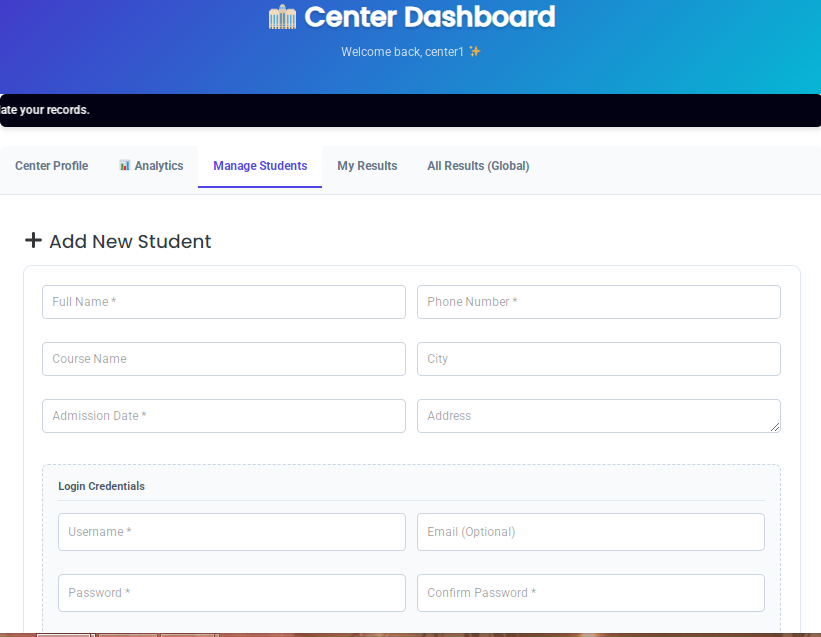
Once logged in, the manager will see an overview of their specific branch. To add new admissions, they simply need to click on the “Manage Students” tab located in the top navigation menu of the portal.
Step 3: Complete the Registration Form
On the Students page, managers will find a dedicated “Register New Student” form. They must fill in the accurate details of the new admission:
Personal Information: Provide the student’s Full Name and a valid Phone Number.
Location & Course Details: Enter the physical Address, City (e.g., Jhansi), and the specific Course Name the student is joining.
Student Login Credentials: Generate a unique Username and Password. The student will use these exact credentials to log in later and check their Quiz And Survey Master (QSM) exam results.
Step 4: Confirm and Enroll
After reviewing the entered data, the manager clicks the “Enroll Student” button. The system will instantly register the student and securely link their profile to this specific center only.
How to Manage Existing Students
Right below the registration form on the same page, center managers have access to a real-time list of all currently enrolled students in their branch.
This organized table displays essential details such as the student’s name, username, phone number, and admission date. If a student leaves the institute or completes their course, the manager can instantly revoke their portal access by clicking the red “Remove” button next to their profile.
This ensures that your QSM centerwise data remains clean, up-to-date, and completely secure for every individual franchise. Now that you know how center managers can enroll students, your centers can operate independently.
Why Frontend Management is Better for Your Franchise
When you understand how center managers can enroll students directly from the frontend, you realize how much time and headache it saves. You no longer have to worry about giving backend WordPress administrative access to third-party franchise owners. This completely eliminates the risk of accidental website design changes, plugin conflicts, or major security breaches.
The MTLS Centerwise system ensures that each individual branch operates within its own highly secure, isolated environment, making the whole process stress-free for the main website owner.
Frequently Asked Questions (FAQs)
👉 Can students enroll themselves automatically?
Currently, the system is designed specifically for controlled admissions. This means the branch administrators retain full authority over the process of how center managers can enroll students. This prevents fake registrations, stops spam accounts, and keeps your valuable QSM exam data highly accurate.
👉 Is there a limit to how many students a center can add?
No, there are absolutely no artificial limits imposed by the plugin. Once you set up the client portal, your branches can register hundreds or even thousands of students, depending entirely on your WordPress hosting server capacity.
👉 What happens if a student forgets their password?
Since branch managers have full control over their specific roster, they can easily update, manage, or reset the login credentials for any student directly from their localized dashboard without needing to contact the main super admin.